Translation
DXPR AI Provider implements the AI module's translate_text operation
with a content-aware prompt engine. When you set DXPR as your translation
provider, every translation request uses dynamic prompts that adapt to the
content being translated instead of a static template.
Setup
Translation requires three modules working together:
- AI Translate (from the AI module package): provides the translation UI and field-level translation workflow
- Content Translation (Drupal core): enables per-language content versions
- DXPR AI Provider: handles the actual translation calls through the Kavya platform
Step 1: Enable AI Translate
drush en ai_translate
This also enables Drupal's Language and Content Translation modules if they are not already active.
Step 2: Add languages
Navigate to /admin/config/regional/language/add and add the languages
your site needs. Drupal ships with support for over 100 languages.
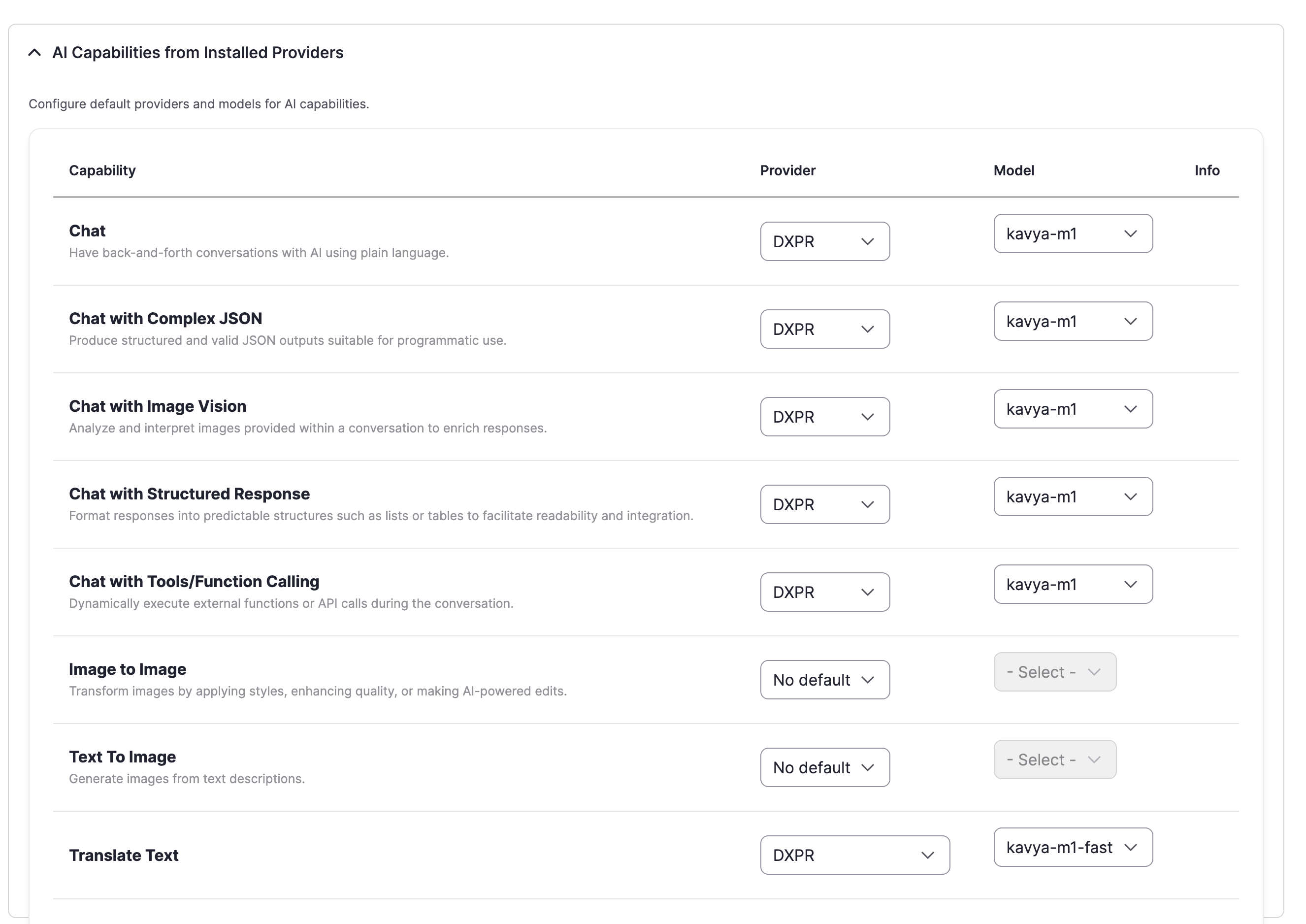
Step 3: Set DXPR as the translation provider
Navigate to /admin/config/ai/settings and set DXPR AI Provider as
the default provider for the Translate Text operation type. Select
the kavya-m1 model (or kavya-m1-eu for EU data residency).
Step 4: Enable translation for content types
Navigate to /admin/config/regional/content-language and enable
translation for the content types and fields you want to translate.
Make sure to expand each content type and tick the individual fields (title, body, and any custom fields). Enabling translation at the content type level alone is not enough; unticked fields will be skipped during translation.
Translating content
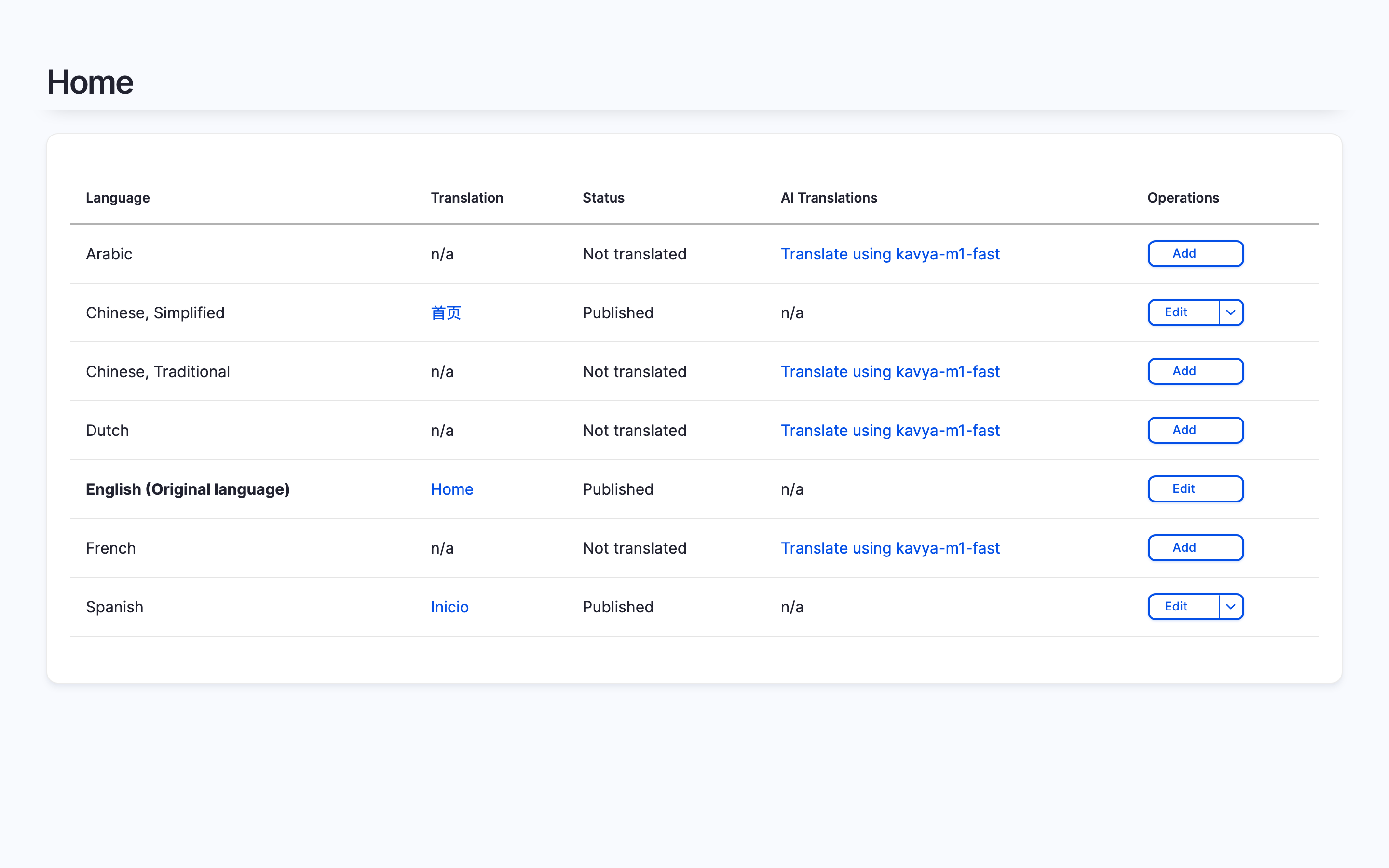
Once configured, a Translate using [model] link appears for each untranslated language on the content Translations tab (where [model] is the model you selected in step 3):
- Navigate to a node and open the Translations tab
- Click Translate using kavya-m1-fast (or whichever model you configured) next to the target language
- AI Translate sends each field to DXPR AI Provider, which translates it while preserving HTML markup and field structure
- The translation form opens with all fields pre-filled
- Review the translation, adjust as needed, and save
Using TMGMT instead
For batch translation workflows, job queues, and translation memory, use TMGMT with the AI Translator plugin:
drush en tmgmt ai_tmgmt
TMGMT provides a translation management dashboard where you can select
multiple content items, submit them as a translation job, and review
translations before publishing. The AI Translator plugin routes
translation requests through the AI module's translate_text operation,
so DXPR AI Provider handles the actual translation with the same
content-aware prompts.
How the prompts work
DXPR AI Provider builds a different prompt for each translation request based on what the content contains:
- Plain text gets a minimal prompt: translate, maintain tone, adapt cultural references
- HTML content adds rules for preserving markup and translating attributes (alt, title, placeholder, aria-label, and five more)
- RTL target languages (Arabic, Hebrew, Farsi, Urdu, Yiddish, Kurdish, Pashto) add direction-handling instructions
- Prompt injection protection is always included: the model is told to translate only, ignoring any instructions embedded in the source text
The prompt is assembled from these pieces at request time, so plain-text fields never see HTML rules and vice versa. This avoids the "translate everything as if it were HTML" problem of static prompt templates.
Attribute and element coverage
When translating HTML, DXPR AI Provider detects and translates attributes and elements that the default AI Translate fallback skips:
| What | DXPR Provider | AI Translate default |
|---|---|---|
| Standard attributes | alt, title, placeholder | alt, title, placeholder |
| Submit/button value | value (on input[submit] and button) | value |
| Accessibility attributes | aria-label, aria-description, aria-describedby | not translated |
| UI component attributes | data-tooltip, data-title | not translated |
| Form elements | label, fieldset, option, optgroup | label, fieldset (title only) |
| Other elements | abbr, iframe (title) | not translated |
Attributes are only added to the prompt when they are actually present in the input, keeping the prompt minimal.
Em-dash handling
The em-dash post-processor resolves its mode based on the target language, not the source. If the target language has a per-language override, that override is used; otherwise the global em-dash mode applies.
This means translations into languages where em-dashes are conventional (such as Russian) can preserve them, while translations into languages where they signal AI authorship (such as English) can replace them.